 Back
Limiter and Loudness Meter Plugins Compared: FabFilter Pro-L 2, Youlean and Free Tools, Plus Four Finishing Moves
A limiter is usually the last processor on your mix. It turns the loudest peaks down just enough that nothing goes over a ceiling you choose, so you can raise the whole track without clipping. A loudness meter tells you how loud the result is, in the unit streaming services use. You need both to finish a track at home, and you don't have to pay for either: your DAW's own limiter and a free meter are enough.
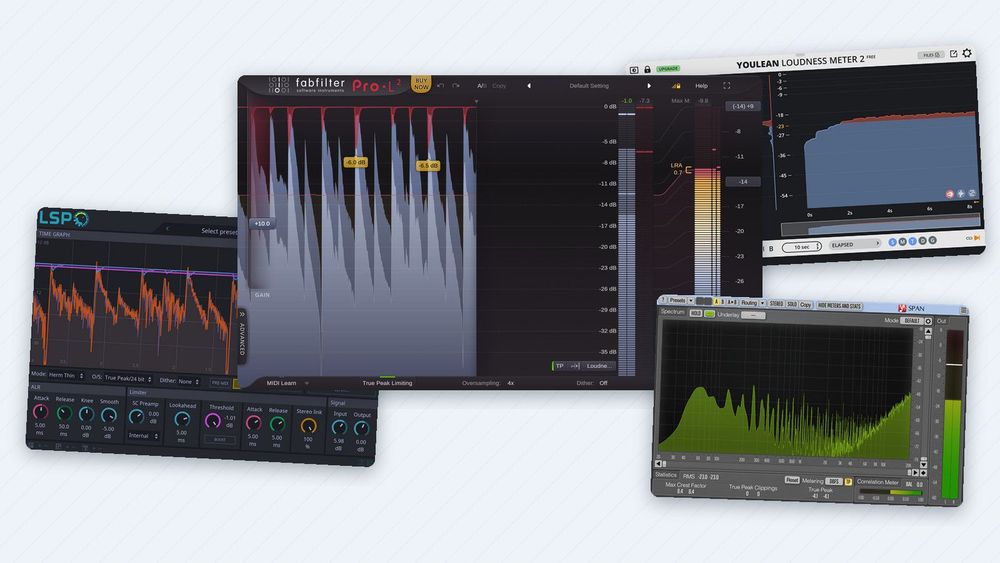
This guide compares five tools with real screenshots: the paid FabFilter Pro-L 2 (free 30-day trial), two open-source limiters, x42-dpl (free, LV2 hosts only) and LSP Limiter Stereo (free on Linux, paid builds for Windows), and two free meters, Youlean Loudness Meter 2 and Voxengo SPAN. First you'll learn what the numbers mean and what streaming normalization does with them. Then you'll see four finishing moves on real captures. Versions and prices are as of November 2026.
Peak, RMS and LUFS in one picture
Three kinds of numbers describe the level of a track, and they answer different questions.
- Sample peak (dBFS) is the highest single sample. 0 dBFS is the top of the digital scale.
- RMS is an average of the whole waveform. It sits far below the peaks.
- Loudness (LUFS) is an average too, but measured the way ITU-R BS.1770 defines it: the signal is first filtered to follow how we hear (K-weighting), and quiet passages are left out of the long-term value. One LU is one dB.

The same 10 seconds of drums, bass and chords, measured four ways. The peaks are about 17 dB above the loudness: that gap is what a limiter works on.
There's one more kind of peak. A digital file stores samples, and the converter in your phone or audio interface rebuilds a smooth wave between them. That wave can rise above every sample. The true peak, in dBTP, estimates this in-between peak by oversampling, as BS.1770 describes.

A constructed example, computed: every sample reads −3.0 dBFS, but the wave reaches 0.0 dBTP. In our test loop the true peak is 0.8 dB above the sample peak.
Loudness meters show three time scales, defined in EBU Tech 3341. Momentary loudness uses a 0.4-second window, short-term a 3-second window, and integrated loudness averages everything since you pressed play. Loudness range (LRA) describes how much the short-term values vary across the piece.

Computed on an 80-second piece built from our test loops. The integrated value is the one Spotify's guidance and the EBU R 128 broadcast standard use.
For a finished track, read the integrated value over the whole song and the highest true peak. The short-term reading helps you compare sections while you work.
What streaming normalization means
Streaming services can turn your track up or down so that songs play at a similar loudness. Spotify documents its method in detail. Its help page for artists says it adjusts tracks to −14 LUFS during playback, measured according to ITU 1770. Louder tracks are turned down. Quieter ones are turned up only as far as their true peak allows, keeping 1 dB of headroom. Spotify's own example: a track at −20 LUFS with a true peak of −5 dB is lifted only to −16 LUFS. When you play an album, Spotify applies one gain to all its tracks, so a quiet ballad stays quieter than the single; in playlists and shuffle, each track is adjusted on its own.
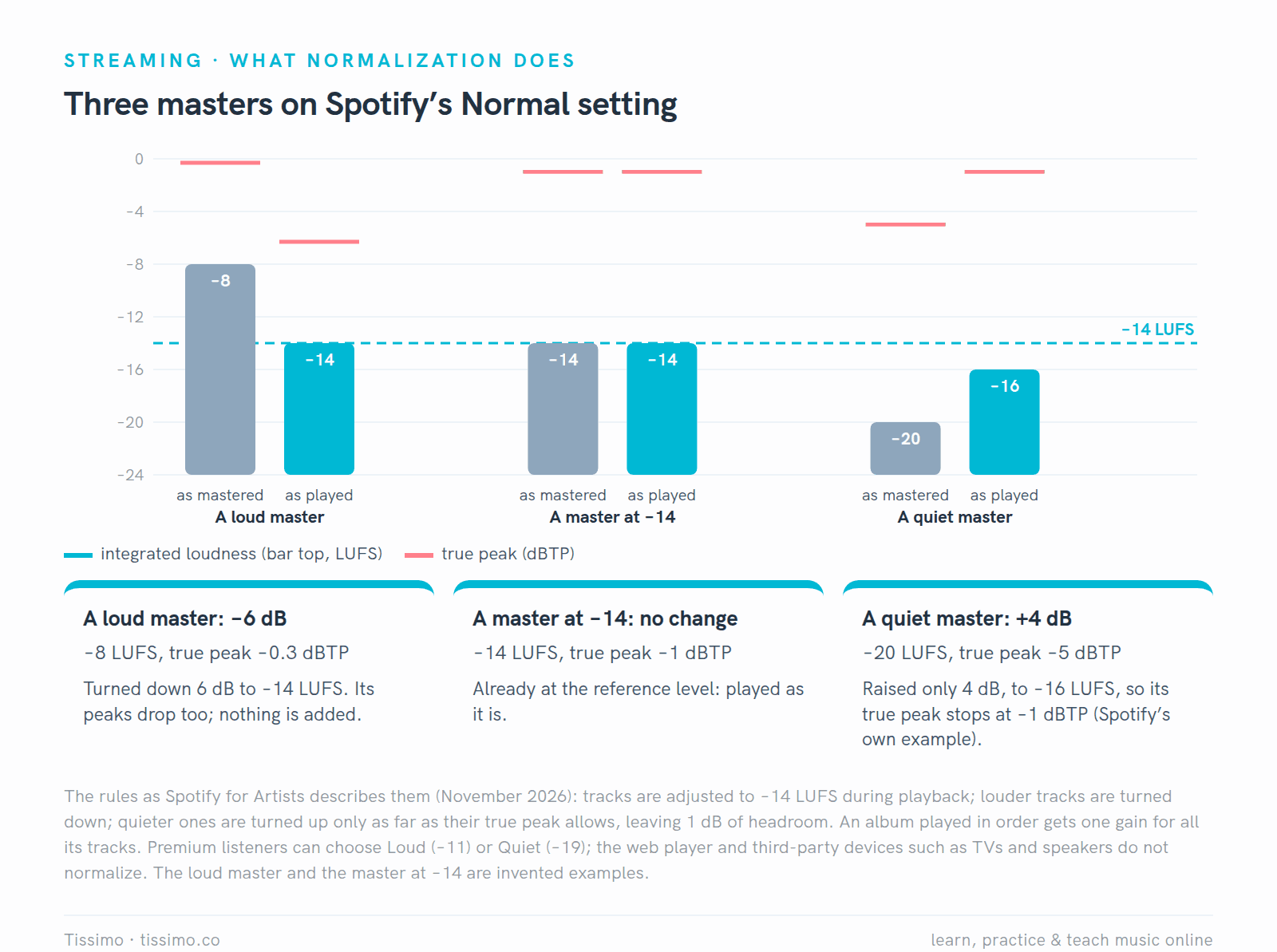
Spotify's documented rules applied to three masters. Pushing a master louder than −14 LUFS doesn't make it louder for listeners on the Normal setting: it gets turned down.
Spotify also suggests keeping the true peak below −1 dBTP, or below −2 dBTP if your master is louder than −14 LUFS, because louder tracks can distort when they are encoded for streaming. Premium listeners can pick a Loud (−11) or Quiet (−19) level instead, and Spotify's web player and third-party devices such as TVs and speakers don't normalize at all.
Other services say less. Apple's support page explains that Sound Check adjusts songs to play at the same volume, but gives no target. YouTube's help page describes Stable Volume and says it is turned off for YouTube Music and official music videos. So treat −14 LUFS as a reference, not a rule. Hugh Robjohns of Sound On Sound made the same point in 2019: services use different targets, and all of them turn down tracks that are louder than their own target.
The lineup at a glance

From each developer's own pages, November 20, 2026. The three limiters control peaks; the two meters only measure. Pro-L 2 is the only one that does both.
The five tools, one by one
The limiters here share a few controls under different names. The ceiling (Output Level in Pro-L 2, Threshold in x42-dpl and LSP, Ceiling in Live) is the level nothing may pass. Input gain pushes the track up into it. Release sets how fast the limiter lets go after a peak: Ableton's manual notes that fast release times make the output sound louder and punchier, while slow ones add smoothness but can reduce the dynamic range. Lookahead, where you can set it, lets the limiter see a peak coming; FabFilter's manual calls longer lookahead times safer but less loud. Start from the defaults.
FabFilter Pro-L 2: the paid all-in-one
Pro-L 2 (version 2.26) lists at $199, and the download runs as a fully functional 30-day trial. It offers eight limiting styles, true-peak limiting, up to 32x oversampling, and loudness metering that supports EBU R 128, ITU-R BS.1770-4 and ATSC A/85. It comes in VST, VST3, AU, CLAP and AAX formats for Windows and macOS.
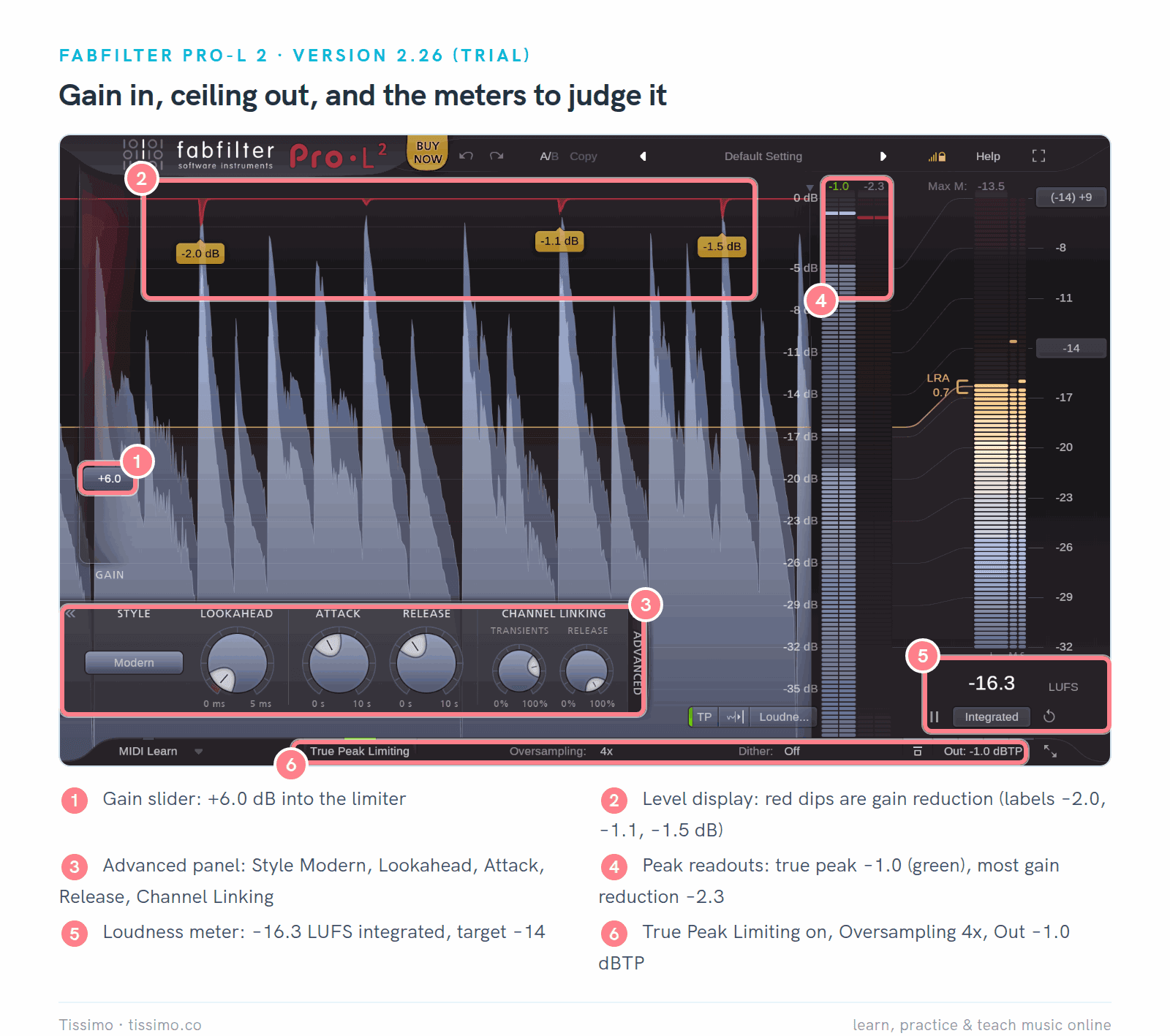
Pro-L 2.26 (trial) on the test loop: Gain +6.0 dB (1), True Peak Limiting on with a −1.0 dBTP ceiling (6), and the loudness meter at −16.3 LUFS integrated (5).
- Pros: limiter and loudness meter in one window; the display labels the largest gain reduction peaks; Unity Gain lets you compare at equal level (move 4); FabFilter's recommended workflow starts with just the default preset and the Gain slider.
- Cons: $199 after the trial; no Linux version; true-peak limiting adds about 5 ms of latency, as FabFilter's manual notes.
- Suits: anyone who finishes tracks often and wants the limiter and the meter in one place.
x42-dpl: a free limiter with three knobs
The x42 Digital Peak Limiter (x42-limiter, version 0.7.3) by Robin Gareus is free under the GPL, with downloads for Windows, macOS and Linux. It has Input Gain, Threshold and Release, a True Peak mode, and 1.2 ms of latency. It ships as an LV2 plugin (and a standalone JACK app).

x42-dpl 0.7.3: Input Gain 6.0 dB, threshold −1.0 dBTP, release 10.0 ms. The bottom meter shows the peak level against the threshold.
- Pros: free, with no license key; nothing to learn beyond three knobs; a True Peak mode; very low latency.
- Cons: LV2 only, so it doesn't load in Ableton Live, FL Studio or Logic Pro; no loudness meter; its True Peak mode oversamples only the detection signal (4x), not the audio.
- Suits: users of LV2 hosts such as Ardour, Harrison Mixbus (versions 5.1 and later include it), REAPER or Audacity.
LSP Limiter Stereo: open source and deep
LSP Limiter Stereo (version 1.2.37, open source under the LGPL-3.0) comes from the Linux Studio Plugins project. It works in two stages: an automatic level regulation (ALR) that behaves like a compressor with an infinite ratio, then a fast peak cutter. You get 12 limiting modes, a lookahead, oversampling up to 8x of the detection signal alone (Half) or of the audio too (Full), "True Peak" modes that oversample the detection signal, and a time graph of the sidechain, input, output and gain. Builds are free for Linux and FreeBSD; Windows builds are sold by the build service LSP's download page points to, and there is no ready-made macOS build.

LSP Limiter Stereo 1.2.37: Input 5.98 dB (6), Threshold −1.01 dB with BOOST off (5), O/S True Peak/24 bit (3). The blue gain line dips on each drum hit (1).
- Pros: free and open source; detailed control of how gain reduction is shaped; a choice of oversampling the detection only or the audio as well; a clear time graph.
- Cons: a dense window with technical mode names (Herm Thin, Exp Duck); the manual warns that CPU load can vary in its iterative modes and that some extreme settings act like a compressor and let the output exceed the threshold; paid on Windows, not ready-made for macOS.
- Suits: Linux users, and anyone who wants to see and shape exactly what the limiter does.
Youlean Loudness Meter 2: the free meter
Youlean Loudness Meter 2 (version 2.5.15) runs as a FREE edition from the same installer as the PRO version, with no license key. It comes as VST2, VST3 and AAX on Windows and macOS, plus AU on the Mac and a standalone app. It measures only: it cannot change your audio.

Youlean 2.5.15 (FREE) with the test loop playing: −21.2 LUFS integrated (1), true peak max −4.1 dB (3).
- Pros: free and never expires; every number you need, in large type; a loudness history graph; PLR shows the distance between the true peak and the integrated loudness.
- Cons: the FREE edition can't set a loudness target or load streaming presets (PRO, $49 list, adds them); no Linux version; no limiter, so you need one anyway.
- Suits: anyone on Windows or macOS. Put it after your limiter and leave it there.
Voxengo SPAN: the free analyzer
SPAN (version 3.24) is a free spectrum analyzer from Voxengo, with a paid SPAN Plus above it. Besides the spectrum it shows RMS, true peak, clipping, a correlation meter, and LUFS modes for its level meter. It runs on Windows (VST, VST3, AAX) and macOS (AU, VST3, AAX).
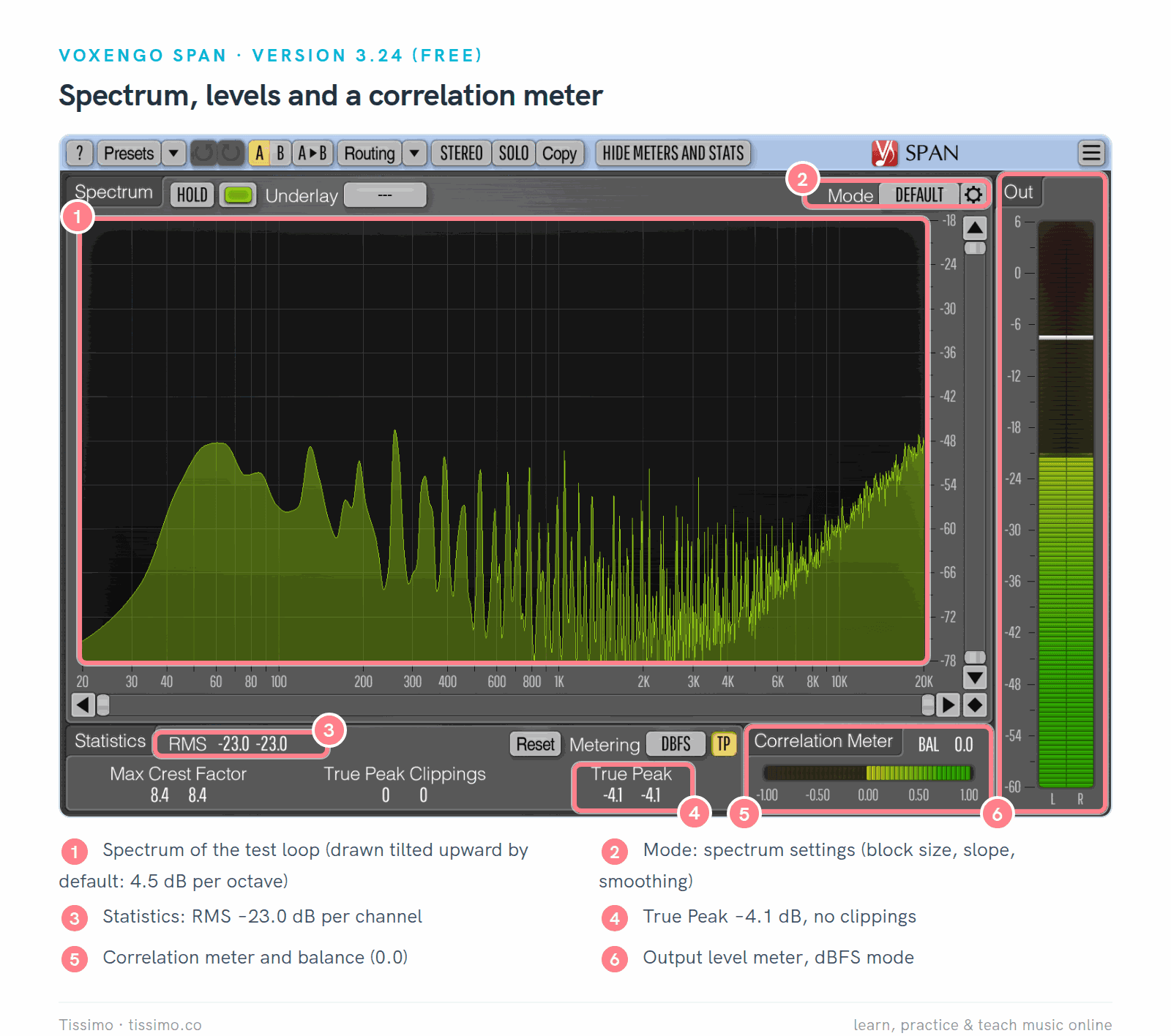
SPAN 3.24 on the test loop: RMS −23.0 (3), True Peak −4.1 with no clippings (4).
- Pros: one free plugin for balance, peaks and stereo; LUFS modes when you need them (move 3); the spectrum shows whether a limiter changed the tone.
- Cons: by default the spectrum is tilted upward by 4.5 dB per octave, so the highs look louder than in most analyzers; the statistics panel has no loudness range; its integrated reading considers only the most recent five minutes.
- Suits: checking tonal balance against reference tracks, and a second opinion on peaks. Our EQ plugins comparison covers what to do when the balance is off.
Four finishing moves on real captures
These are starting points. A limiter at the end of a mix can't fix a mix that's out of balance; our Ableton mixing walkthrough builds the mix before this stage. Each move below was made on the same test loop.
1. Set a true-peak ceiling
Turn on true-peak limiting and set the ceiling first. FabFilter's manual suggests turning on true-peak limiting and true-peak metering, then setting the Output Level to the maximum your target allows, for example −1.0 dBTP. That matches Spotify's advice. Hugh Robjohns argues there's a case for going as low as −3 dBTP for lossy formats.
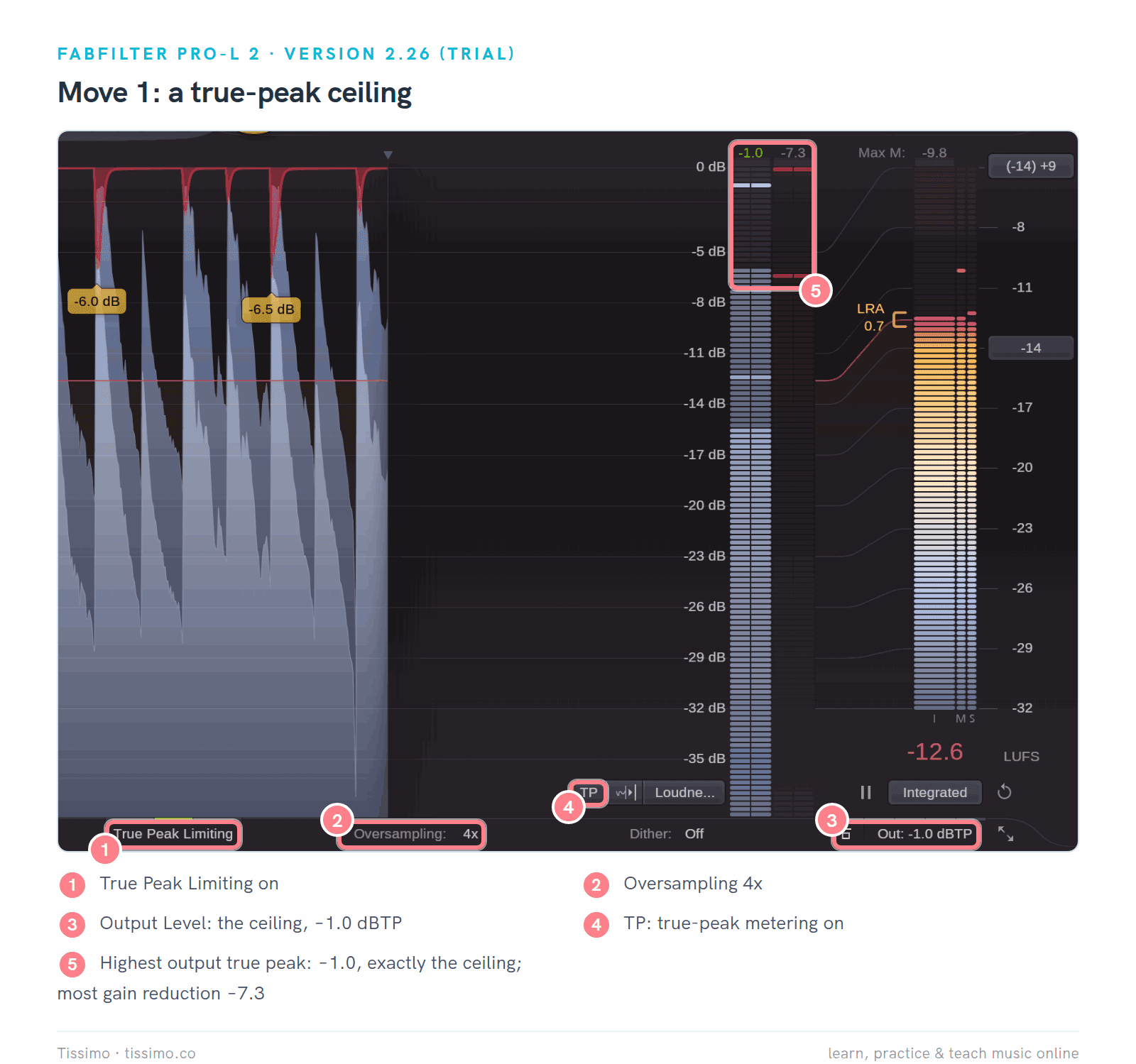
Pro-L 2 with +10 dB of gain: True Peak Limiting on (1), Oversampling 4x (2), Out −1.0 dBTP (3), TP metering on (4). The highest output true peak reads −1.0 (5): the ceiling holds.
FabFilter recommends 4x oversampling with true-peak limiting: it reduces the inter-sample peaks the limiter would otherwise have to catch.
2. Add a little gain, then stop
Raise the input gain slowly and watch the gain reduction. With +4 dB, Pro-L 2 barely touches the loop.

Gain +4.0 dB (1): most gain reduction 0.0 dB (2), integrated −18.3 LUFS (3).
Pro-L 2's Output Level of −1.0 lowers the whole output by 1 dB, so the loop reads −18.3 LUFS, not the −17.2 that −21.2 plus 4 dB would give.
At +10 dB, the limiter works on every drum hit.

Gain +10.0 dB (1): most gain reduction −7.3 dB (2), integrated −12.6 LUFS (3), shown in red: it is above the −14 target set here.
Six more decibels of gain bought 5.7 LU of loudness, and the drum hits are now pushed down by up to 7.3 dB. On Spotify's Normal setting this version would be turned down to −14 anyway. Ableton's manual warns, in its Compressor section, that gain reduction above about 6 dB significantly alters the sound and its dynamics. As a starting point, keep the deepest dips to a few dB, and listen for a dulled snare or a distorted bass.
3. Read the meter after the limiter
Put your meter last, after the limiter, and play the loudest part of the song, ideally the whole song. Read the integrated value and the true peak.

SPAN in LUFS-SL mode (1): integrated −21.2 (2) and true peak −4.1 (4) for the loop without a limiter. Youlean showed the same values.
These are baseline readings, before any limiting; with Pro-L 2 at +4 dB (move 2), its own meter reads −18.3 LUFS. Our calculation in the first figure gives −4.0 dBTP; FabFilter's help calls a 0.1 dB difference between true-peak meters not unusual.
Two meters agreeing is a good sign. Watch the reading build up over time: integrated loudness needs the whole song, not four bars.
4. Compare at matched loudness
Louder almost always sounds better at first. FabFilter added Unity Gain to Pro-L 2 for this reason: it turns the output down by the amount of gain you added, so you can hear what the limiting does without the extra volume.

Unity Gain on, with Gain still +10.0 dB (1): the output meter turns yellow (2) and the Out button dims (3), while the meters still report the real result, −12.6 LUFS (4).
Switch it on and off. If the limited version sounds flatter at equal level, back off the gain. Without Pro-L 2, put a gain or utility plugin after the limiter and turn it down until the meter shows the same integrated loudness as the bypassed version, then compare.
Using them in Ableton Live, FL Studio and Logic Pro
Check the formats before you download. Our guide to VST plugins and how to install them covers the steps.
- Ableton Live 12 loads VST2, VST3 and, on the Mac, Audio Units. Pro-L 2, Youlean and SPAN all work. Its built-in Limiter has a Ceiling, a True Peak mode and 1.5, 3 or 6 ms lookahead. The manual's audio effect chapter describes no LUFS meter, so add Youlean.
- FL Studio loads VST2, VST3 and CLAP, plus AU on the Mac, so Pro-L 2, Youlean and SPAN all load. Fruity Limiter has GAIN and CEIL controls on its LIMIT tab, and Maximus (Producer Edition and up) is a multiband maximizer; neither manual page mentions true peak. Emphasizer, included in every edition, is a simpler limiter with a second, clipping stage and an integrated LUFS meter. Emphasis (All Plugins Edition only) is a mastering limiter with a True Peak switch, an Output ceiling, Level Matching and momentary, short-term and integrated LUFS meters. Wave Candy's meter also offers an ITU-R BS.1770 mode.
- Logic Pro uses third-party plugins in the Audio Units format only: install the AU versions of Pro-L 2, Youlean or SPAN. Its Adaptive Limiter has an Out Ceiling and a True Peak Detection button, and its Loudness Meter shows momentary, short-term and integrated loudness and the loudness range, following EBU R 128.

Live's Limiter in Live 12.4.15: Ceiling −1.0 dB, True Peak mode, 3 ms lookahead, Input Gain still at 0.0 dB. Raise it as in move 2.
Fruity Limiter works the same way in FL Studio.

Fruity Limiter in FL Studio 2026 (26.1.7): GAIN (2) pushes into the ceiling set by CEIL (3).
Is the built-in limiter enough? In Logic Pro, yes: Adaptive Limiter with True Peak Detection, the Loudness Meter and the Level Meter in True Peak mode cover the four moves. In Live, the Limiter's True Peak mode plus free Youlean does too. In FL Studio it depends on your edition: Emphasis (All Plugins Edition) limits true peaks and shows LUFS by itself; with Fruity Limiter, Maximus or Emphasizer, add Youlean to read the true peak. Our sibling guides list more add-ons for Ableton Live 12, FL Studio and Logic Pro.
Which tools should you use?
Start with your DAW's limiter and Youlean. That pair already gives you a ceiling, gain and every loudness number. Add SPAN when you want to check tonal balance and stereo. On Linux, LSP Limiter Stereo or x42-dpl replaces the DAW limiter. Try Pro-L 2 when you finish tracks often and want the limiter, true-peak control, loudness meter and Unity Gain in one window; the 30-day trial shows whether that is worth $199 to you.
A limiter controls peaks; it doesn't decide the sound of your track. If the mix is right, a little gain and a −1 dBTP ceiling are often enough. Our compressor plugins comparison explains the dynamics behind it, and our guide to producing music at home covers the steps before this one. If you'd like someone to listen to your master with you, a Tissimo music production teacher can do that in a live online lesson.
Sources
- Pro-L 2 — FabFilter
- Pro-L 2 online help — FabFilter
- Downloads and trial terms — FabFilter
- x42 Digital Peak Limiter — x42 plugins
- Limiter Stereo manual — LSP Plugins
- Youlean Loudness Meter — Youlean
- SPAN — Voxengo
- Loudness normalization on Spotify — Spotify for Artists
- ITU-R BS.1770: loudness and true-peak measurement — ITU
- EBU R 128: Loudness normalisation and permitted maximum level of audio signals — EBU
- EBU Tech 3341: Loudness Metering — EBU
- If music in Apple Music sounds quiet (Sound Check) — Apple Support
- Control video volume on your device — YouTube Help
- Q. How loud should I master tracks intended for streaming?, Hugh Robjohns — Sound On Sound
- Live 12 Reference Manual: audio effects — Ableton
- Fruity Limiter — Image-Line
- Emphasis — Image-Line
- Loudness Meter in Logic Pro — Apple
Read this article online: https://tissimo.co/articles/limiter-and-loudness-meter-plugins-compared-pro-l-2-youlean-and-free-tools



Comments