 Back
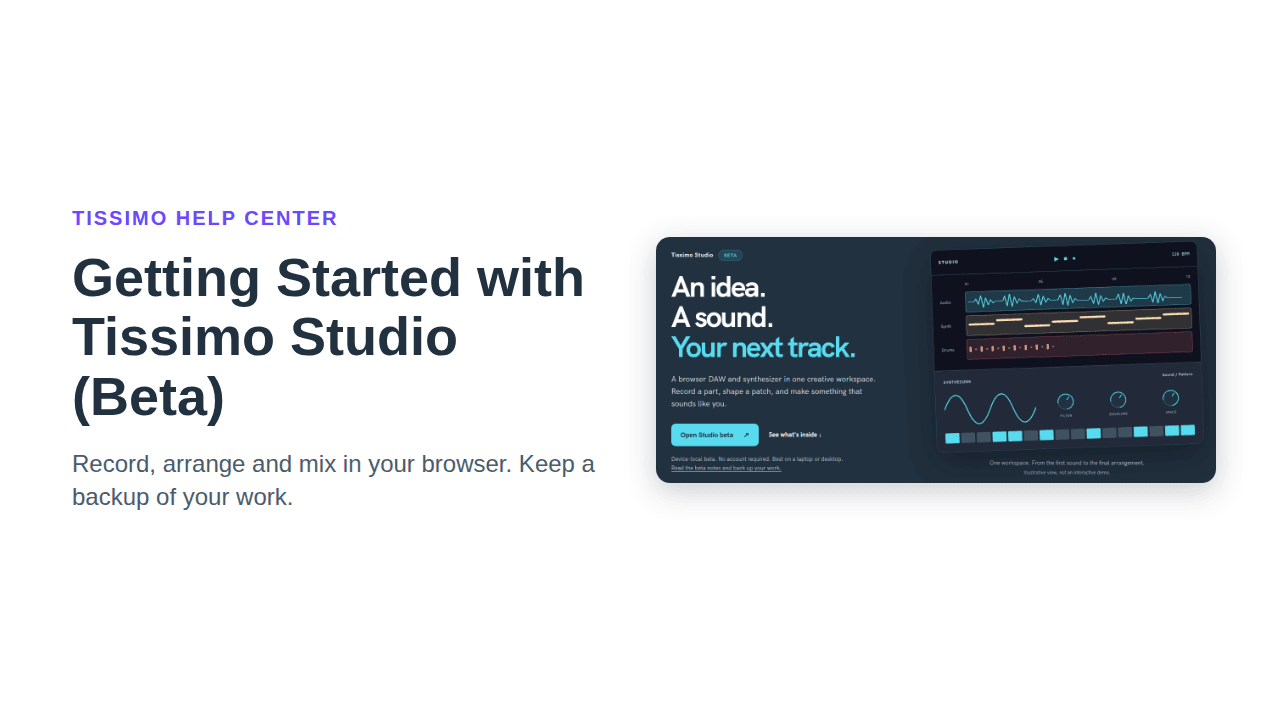
Getting Started with Tissimo Studio (Beta)
Tissimo Studio is a music workstation (DAW) and synthesizer that runs in your browser: record audio, write MIDI notes, design synth sounds, arrange them on a timeline and export a WAV. It's a beta. You don't need an account, it works best on a laptop or desktop, and it saves your work in your browser, not in your Tissimo account.
Find it under Studio (Beta) in the footer of Tissimo's public pages, such as the home page, or at tissimo.co/studio/beta. Studio is in English only.

Know where your work is saved
Studio saves your projects automatically in this browser profile, even when you're signed in. There is no account sync: your projects won't appear on another computer or browser, and anyone using the same browser profile can open them. Clearing site data, private windows, or the browser freeing up storage can remove them, so keep a backup of anything you care about (see below).
Open Studio
- Go to tissimo.co/studio/beta and click Open Studio beta.
- The first time, you get an empty Untitled project. Next time, Studio reopens your most recent project. Click the project name to rename it.
- Sound starts after you first click or press a key on the page. The first time you record from a microphone, your browser asks for permission: allow it.
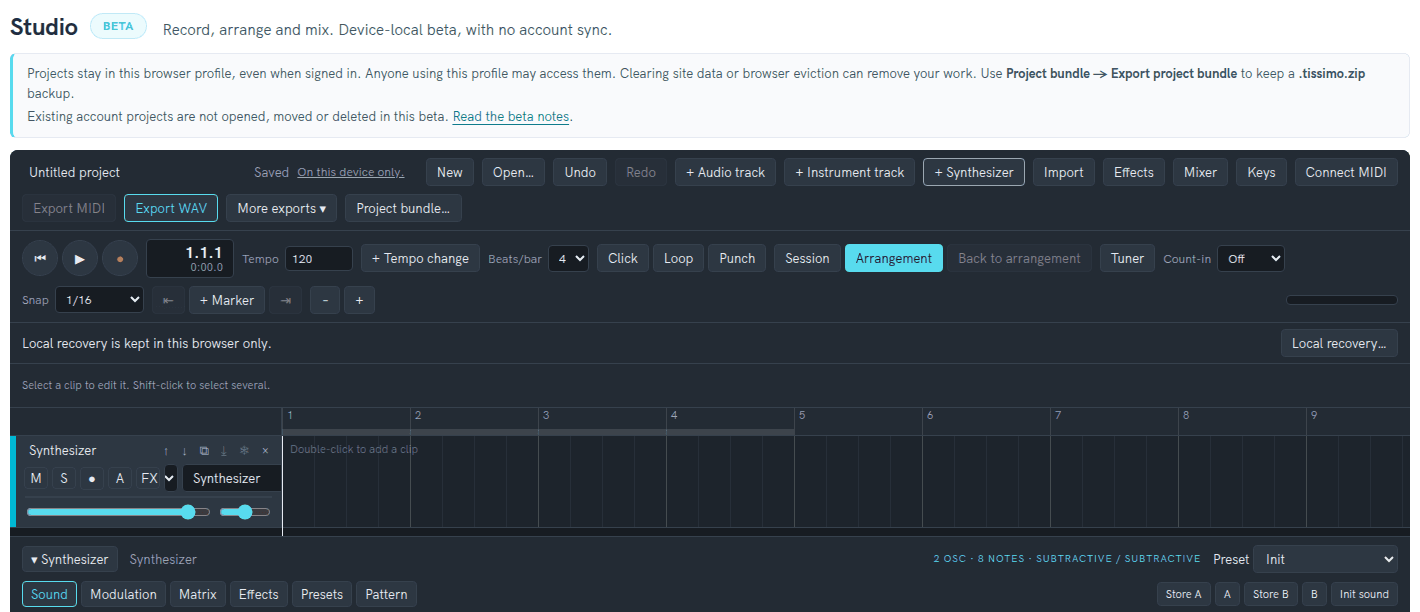
Studio saves a moment after each change; Saved next to the project name tells you it's done. Use Open… to switch projects and New to start another.
Your first few minutes
- Click + Synthesizer. A Synthesizer track appears, with the synth panel below the timeline.
- Choose a sound from the Preset menu, or browse and search sounds on the Presets tab. To play it, click Keys and use your computer keyboard (A, W, S, E, D, F… and Z/X to change octave), or plug in a MIDI keyboard and click Connect MIDI.
- Open the Pattern tab, build a 16-step pattern, then click Insert MIDI clip. The clip goes in at the playhead, and you can edit its notes like any MIDI clip.
- Click the play button (▶) to listen. Space also plays and stops, but only when no button, menu or field is focused: click an empty part of the timeline first.
Prefer audio? Click + Audio track, or Import a WAV, MP3, M4A, OGG, FLAC or MIDI file. To record, arm a track with its ● button, then click the round record button (●) next to play. (The R shortcut does the same when Keys is off and no button or field is focused.) With nothing armed, Studio records to the selected track, or to a new audio track if none is selected. Audio tracks record your microphone; instrument tracks record the notes you play. If you see "Microphone access was blocked", allow the microphone for this site in your browser settings. To write notes by hand, double-click an instrument track's lane to add a clip and open the piano roll.
Arrange, mix and export
- Arrangement shows your song on a timeline, where you move and layer clips. Session is a grid of clips you can launch and loop, scene by scene. Back to arrangement returns tracks to the timeline.
- Effects opens the selected track's effect chain, and Mixer shows the faders. A track's A button opens automation lanes, where you draw mixer, effect or synth macro changes over time.
- Export WAV renders the Arrangement timeline as one WAV mix. More exports ▾ offers Loop region as WAV and Stems (one WAV per track), and Export MIDI saves your instrument tracks as a MIDI file (available once an instrument track contains notes).
WAV export doesn't include anything that only exists in Session view: copy a scene to the timeline with its ⇥ button, or click Performance → arrangement, first.
Back up, move and recover your work
A WAV is a finished mix that you can't edit again. For an editable backup, export a project bundle: one .tissimo.zip file with the arrangement, instruments, effects and audio.
- Let any recording finish first.
- Click Project bundle… in the top bar.
- Under Export this project, click Export project bundle. Your browser downloads a file named after your project, and Studio shows "Project bundle downloaded, including its audio files."
- Keep the file somewhere safe, together with your original recordings.
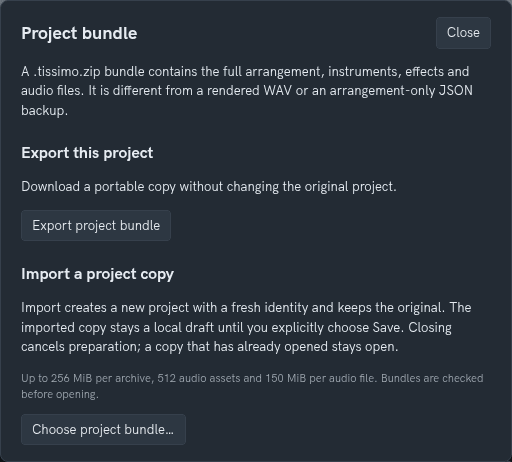
To continue on another computer or browser, copy the file there yourself, open Studio, click Project bundle… and, under Import a project copy, click Choose project bundle… and select your .tissimo.zip file. When it has opened, click Close. The bundle opens as a new project with "(imported)" added to its name, and your original file and other projects stay unchanged. Imported copies aren't saved automatically, and Studio's messages call this step "Save": click Unsaved changes next to the project name to save the copy in that browser.

- Size limits: a bundle can be up to 256 MiB, with up to 512 audio files of up to 150 MiB each. The same limits apply when you export, so a project with many long recordings may be too large to bundle.
- Synth sounds: each track's sound is saved with the project. The library of sounds you keep with Save new sound stays in this browser and isn't part of the project bundle. Back it up with Export bank on the Presets tab, and bring it back with Import sounds. Pattern builder settings and the A/B comparison slots aren't saved; inserted clips are.
- After a crash: click Local recovery… to see the recovery copies kept in this browser, then Open recovery, Download local files or Discard recovery. Nothing opens automatically, and an opened recovery must be saved like an import. The latest changes or the end of an interrupted recording may be missing, and the downloaded files aren't a complete project bundle.
- One tab at a time: avoid editing the same project in two tabs.
Good to know
- A project can have up to 32 tracks, and the synthesizer plays up to eight notes at once, including release tails.
- Performance and audio and MIDI support depend on your browser and device; large projects need more memory and storage. If you click Connect MIDI and the button changes to MIDI not available, your browser doesn't support MIDI or the permission was declined; No MIDI device found means no keyboard was detected.
- Features and project formats may change during the beta. Tell us how it goes with Share feedback with Tissimo on the Studio beta page (see Provide Feedback), or Contact Support with a problem.

Comments