 Back

Practice Games: Note Identification and Custom Quiz
Practice Games are short note-reading games in your Tissimo student dashboard. In Note Identification, a note appears on the staff and you name it before the clock runs out. In Custom Quiz, you pick the exact notes you want to drill. A few minutes a day goes a long way.
Open Practice Games
- Sign in to your Tissimo student account.
- In the side menu on the left, select Practice Games. If the menu shows only icons, point at an icon to see its name.
- Choose Note Identification or Custom Quiz. To come back to this page from a game, select ← Practice Games at the top.
The Practice Games entry is in the side menu of the dashboard on a computer. The menu on a phone doesn't list it.

Set up a Note Identification game
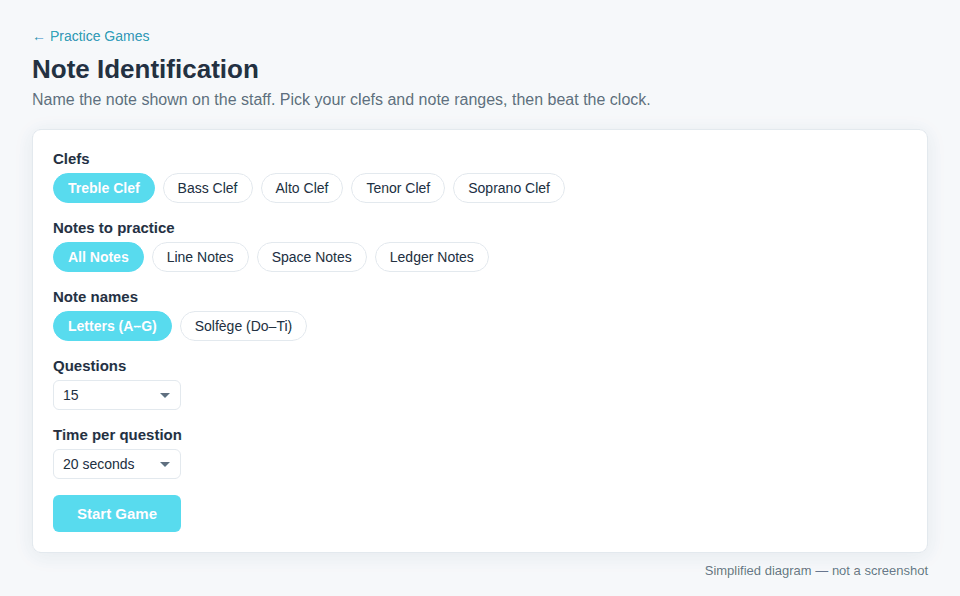
- Clefs: Treble Clef, Bass Clef, Alto Clef, Tenor Clef and Soprano Clef. Turn on as many as you like and the questions mix them. At least one clef must be on.
- Notes to practice: All Notes, Line Notes (the five lines), Space Notes (the four spaces) or Ledger Notes (notes above and below the staff). Notes go as far as two ledger lines above and below the staff.
- Note names: Letters (A–G) or Solfège (Do–Ti). In solfège, Do is always C, then Re, Mi, Fa, Sol, La and Ti.
- Questions: 10, 15, 20, 30 or 50.
- Time per question: No limit, or 5, 10, 20, 30 or 60 seconds.
Then select Start Game. Each note in your clefs and range comes up once before any note repeats, and the same note never appears twice in a row.
Play
- The bar above the staff shows the question number, the time left (when you've set a time limit) and your score.
- Select the note's name from the seven answer buttons. All the notes are natural notes, with no sharps or flats.
- You'll see right away how you did, for example "E is correct!" or "D is wrong — it's E." If the time runs out, you'll see "Time's up! The answer is E." The next note appears after a moment.
- Pause quiz hides the note and stops the clock until you select Resume quiz. Paused time doesn't count toward your answer time.
- Quit quiz stops the game without a results screen and takes you back to the setup (or to your list, in a Custom Quiz).

Read your results
After the last question, the Game Over screen shows:
- Correct: how many you got right, with a percentage. A question that ran out of time counts as missed.
- Average per note: how long you took per answer, on average.
- Strongest note: the note you named correctly most often.
- Needs practice: the note you missed most often (shown only when you missed at least one).
- A table with the Correct and Missed count for each note.
Select Play Again for a new set of notes with the same settings, or Change Settings to go back to the setup. Scores aren't saved to your account, so note down any result you want to keep or show your teacher.

Build a Custom Quiz
- On the Practice Games page, select Custom Quiz.
- Choose a Clef and a Note. Notes are listed by letter and octave (C4 is middle C), and the staff shows a preview.
- Select Add Question. Repeat for every note you want. You can mix clefs and add a note more than once. Remove deletes one question, and Clear All empties the list. A quiz holds up to 100 questions.
- Under Note names, choose Letters (A–G) or Solfège (Do–Ti).
- Select Play Quiz. The button shows how many questions your quiz has.

A custom quiz plays your notes in the order you added them, with no time limit. You get the same results screen at the end: Play Again replays the same quiz, and Change Settings takes you back to your list.
Where your custom quiz is saved
Your custom quiz is saved in this browser on this device, not in your Tissimo account. It's still there when you come back in the same browser, but it won't appear on another device or in another browser, and clearing the site's data deletes it. A private window may not keep it. On a shared computer, anyone who opens Custom Quiz in the same browser sees the same list.
Tips
- Start with one clef and Line Notes or Space Notes, then move on to All Notes and Ledger Notes.
- Build a custom quiz from the notes that keep showing up under Needs practice.
- Practice on paper too with the free worksheets Name the notes: treble clef, Name the notes: bass clef, Name the notes: ledger lines and Reading alto & tenor clefs.
- Train your ear as well as your eyes with the free Ear Trainer.
- See also Using the Practice Page and Student Dashboard Overview.

Comments