 Back
View Tissimo in Your Language
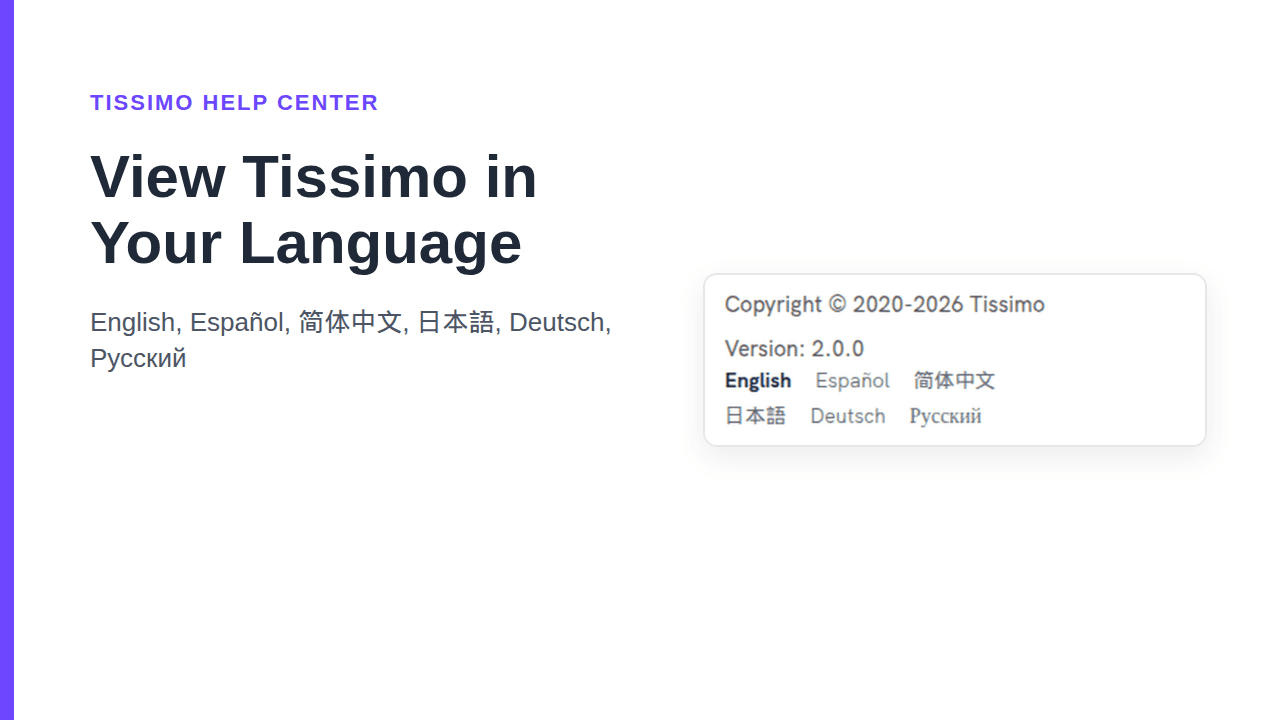
Many of Tissimo's public pages are available in six languages. You can switch with one click from the footer of most public pages.
The languages
- English
- Español
- 简体中文
- 日本語
- Deutsch
- Русский
Each language is shown by its own name, so you can find yours even if the page is in a language you can't read.
How to switch
- Scroll to the bottom of a public page such as Home, About, the Help Center, Articles, Worksheets or Sheet Music, and find the language links in the footer, on desktop and on mobile.
- Click your language. The current language is shown in bold and isn't a link.
- The page opens in that language.

The language is part of the web address. English pages have no prefix, and the others begin with /es, /zh-Hans, /ja, /de or /ru, for example tissimo.co/de for the German home page. Bookmark or share the address and it opens in that language. Tissimo doesn't guess your language from your browser or remember your choice, so use the footer links when you arrive on an English page.
The Music Teachers and Music Courses lists have no footer, so there is no language switcher on them. To see them in another language, switch on another page first (the navigation links keep your language), or go straight to the address, for example tissimo.co/de/music-teachers.
Pages that are translated
- Home, About and Become a Teacher
- Teacher Earnings and Affiliates
- Music Classroom (the landing page; the classroom itself stays in English)
- Music Teachers and Music Courses lists, including the pages for each instrument and teaching language
- Help Center and Articles pages; individual articles open in English when they haven't been translated yet
- Worksheets
- Sheet Music, including search and playlists (titles of works and other user content stay as written)
What stays in English
- Individual course pages and teacher profiles, because teachers write them (these pages have no footer, so you can't switch language on them)
- Signed-in pages such as your dashboard and settings
- Any page that isn't in the list above
If you click a language on an English-only page that has the footer (for example How It Works or Ear Training), you go to the home page in that language instead of a broken link, and on a computer the link's tooltip says This page is available in English only.
Tips
- Teachers who teach in other languages can say so on their profile; see Setting Your Teaching Languages.
- Browse the teacher directory filtered by teaching language to find a teacher who speaks yours.
- To go back, click English in the footer.

Comments