 Back

Using the Tone Generator in the Classroom
The tone generator plays a steady reference pitch during a lesson, any note from C1 to B6. Use it for a tuning note, a singer's starting note, or a held pitch to check intonation against. It's part of the Metronome panel, both in the classroom for booked lessons and in Music Classroom.
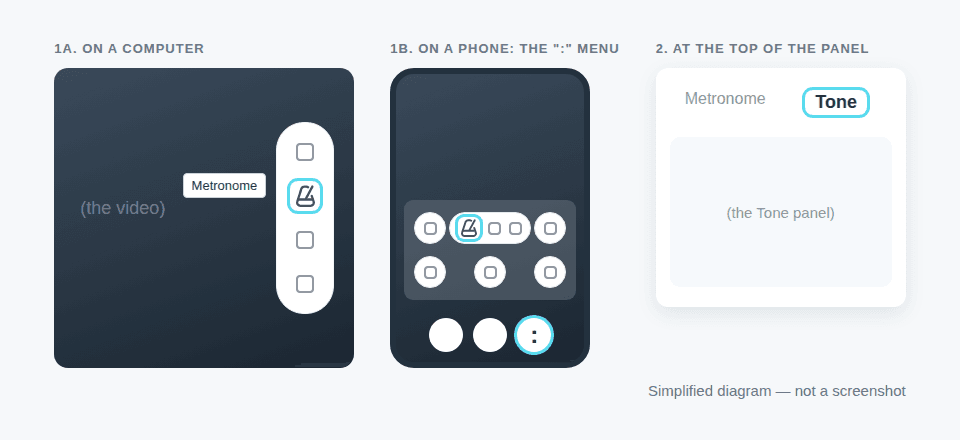
Open the Tone panel
The Metronome panel is available when you entered the classroom with Main selected as your device (the default). With Lite or Secondary, it isn't there.
- On a computer: move your pointer over the video to show the column of tool buttons on the right, then select the metronome icon (hovering over it shows Metronome). The panel opens on the right. If another panel is already open, select the metronome icon in the row at the top of that panel instead.
- On a phone: tap the : button in the bottom toolbar, then the metronome icon. The panel opens over the whole screen. Tap Metronome at the very top to close it.
At the top of the panel, select Tone. Select Metronome to switch back to the click.
Choose a note
- Use the ♭ / # switch to choose how the black-key notes are named: as flats (Db, Eb, Gb, Ab, Bb) or as sharps (C#, D#, F#, G#, A#). The pitch is the same either way. Flats are selected when the panel opens.
- Select a note on the circle. C is at the top, and the notes go clockwise in half steps up to B. The middle of the circle shows the note you picked and its octave.
- Under Octave, select 1 to 6. Octave numbers start at C: octave 4 begins on middle C, so B3 is the B just below middle C.
The panel starts on A in octave 4, and the box under the octaves shows its frequency, 440 Hz.

Play and stop the tone
Select Play tone. The tone holds until you select Pause tone. While it plays, you can pick another note or octave, and the tone changes right away. It keeps sounding if you switch to the Metronome view, open another panel or close the panel: reopen the Tone panel and select Pause tone to stop it.
Every note starts at standard tuning, with A4 at 440 Hz. The - and + buttons beside the frequency fine-tune the pitch in steps of 0.1 Hz, so you can tune to a different A, such as 442 Hz. Picking another note or octave returns to standard tuning.
What your student hears and sees
The tone isn't sent over the call as audio. Each device makes its own sound, and the two Tone panels follow each other: when one of you picks a note or octave, switches between ♭ and #, uses - or +, or selects Play tone or Pause tone, the other panel follows. A panel only follows changes made while both of you are in the classroom: someone who joins or rejoins starts again at A in octave 4.
- A device plays the tone only after the person using it has selected Play tone or Pause tone at least once since joining. Until then, the button on that panel still changes to Pause tone when the other person starts the tone, but the device stays silent.
- If only you have used the button, only you hear the tone directly. Your student hears at most what your microphone picks up from your speakers. That is often little or nothing, because the call's echo cancellation is designed to remove sound coming from your own speakers, and it's nothing at all if you wear headphones.
To have the tone sound on both devices, do this at the start of the lesson, after your student has joined:
- Check that Student participation is on (the switch just above the controls at the bottom of your screen). While it's off, your student can't use the Tone panel, and their screen shows Teacher control.
- Ask your student to open the Tone panel (they also need to have joined with Main) and select Play tone, then Pause tone.
- Select Play tone yourself. From now on, a tone sounds on both devices whenever either of you starts it. If your student leaves and rejoins, repeat step 2, then pick the note and the octave again so that both panels show the same thing. If you had fine-tuned the frequency, also select + and then - so that both panels show the same frequency.
Tips and troubleshooting
- Tuning: play the note of each open string in turn, for example A4 for a violin's A string, or E2, A2, D3, G3, B3 and E4 for a guitar in standard tuning.
- Singers: play the starting note, then select Pause tone before they sing.
- Your student's clicks do nothing: turn on Student participation.
- For a steady beat, switch to the Metronome view. See Using the In-Classroom Metronome. To show the same note on a keyboard, use the piano keyboard tool.
- Students: the practice page has the same Metronome and Tone panel, where the tone plays only on your own device. See Using the Practice Page.
- Outside a lesson: the free online tone generator is the same tool and needs no account. There, the tone plays only on your own device.

Comments