 Back
Sharing Your Practice Logs with Your Teacher
Practice is more useful when your teacher can see it. With Share practice logs with teachers, you decide whether the teacher you take lessons with can look at the sessions you record on the Practice page. Sharing is off until you turn it on, and you can change it at any time.
Where to find the setting
- Go to the Practice page.
- Open the History tab. On a computer it is in the panel on the right. On a phone or tablet the tabs are a row of icons at the top of the page, above the sheet, and History is the last one.
- At the top of the Practice history panel, look for Share practice logs with teachers.
The switch appears only if you have bought at least one course on Tissimo. If you have never booked a course, you won't see it.

Turn sharing on
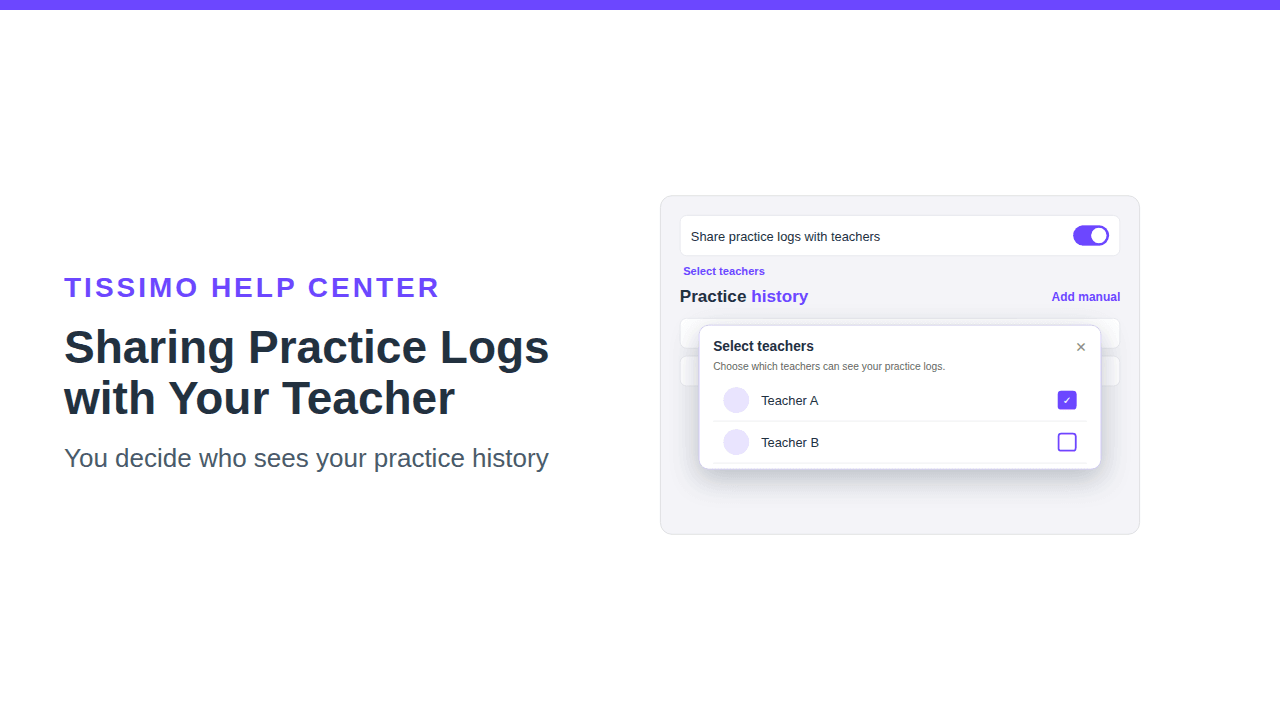
Turn on the switch. By default your logs are shared with all of your teachers. Each time you turn the switch on, it shares with all your teachers again, so reopen Select teachers if you only want some of them. Nothing else is required; the change saves right away. If it can't be saved, a notice appears and the switch returns to its previous position, so try again.
Choose which teachers can see them
If you have taken completed lessons with more than one teacher, a Select teachers link appears under the switch while sharing is on.
- Click Select teachers.
- In the window, a checkmark means that teacher can see your practice logs. Click a teacher to check or uncheck them. Each click saves immediately.
- Close the window with the ✕ or by clicking outside it.
Teachers are listed once you've had a completed lesson with them. If you uncheck everyone, nobody sees your logs even though the switch stays on.
What your teacher sees
Your teacher sees a Practice history section on your student page. It shows your total for the last 7 days and your 30 most recent sessions. For each session it lists the piece (or Practice session if there isn't one), the date, start time and duration, plus the instrument and memo if you added them. This includes sessions you add manually, so notes you write in the memo field are visible too. See Adding Practice Time Manually.
If you aren't sharing with a teacher (or haven't logged any practice yet), they see: This student isn't currently sharing their practice logs with you.
Stop sharing
- To stop sharing with everyone, turn the Share practice logs with teachers switch off.
- To stop with one teacher, open Select teachers and uncheck them.
Your own history stays exactly as it was; sharing only controls who else can look. To manage or delete individual sessions, see Viewing and Managing Your Practice History.
Tips
- Check your memos before sharing. Notes like "hard bar 12" help your teacher plan the next lesson, but anything in a memo is visible.
- Use sharing together with your goal: see Setting Your Weekly Practice Goal.

Comments