 Back

Viewing Your Active Recurring Series (Teachers)
The Active Recurring Series page lists every student who has a recurring lesson series with you. Each card shows the series' weekly day and time, whether it's running or paused, the next lesson and how many lessons have been completed. It's a quick way to see your regular students in one place.
Open the page
- In the side menu, click Schedule.
- Make sure Availability is selected at the top of the page. It's the default view.
- Click Recurring Lessons, the aqua button just above the Recurring and Daily toggle.
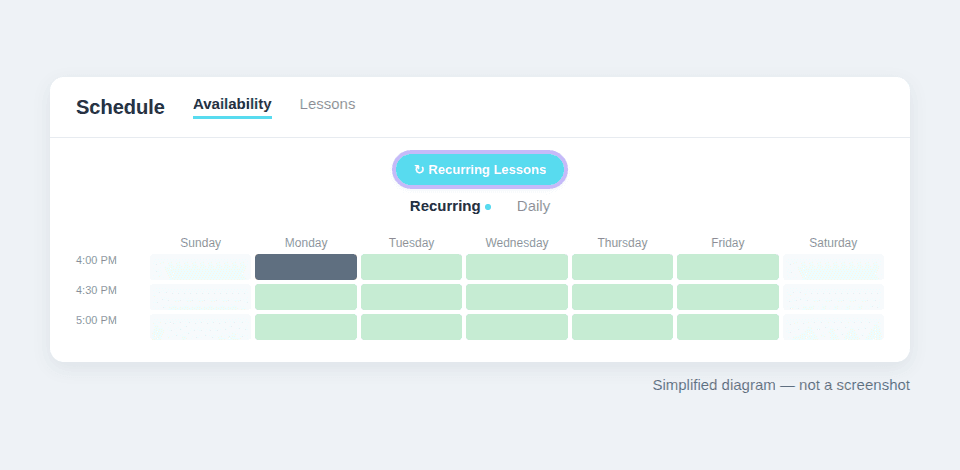
The Recurring Lessons button appears only when your browser window is wider than 992 pixels, as on a laptop or desktop computer. On a phone, a tablet or a narrower window, the Schedule page has no link to the series page. The availability calendar, and the button with it, appears once you've finished teacher onboarding. To return, click Back to schedule at the top of the series page.
What each card shows
A line above the cards counts your series, for example "2 ACTIVE SERIES". The newest series come first. Each card shows:
- The student's photo and name, and the instrument.
- A status badge: Active (green) or Paused (orange).
- The weekday and time of the series in your local time, such as "Mondays" and "4:00 PM (30 min)".
- Next lesson: the date and time of the next lesson in this series that's already on your calendar, such as "Mon Nov 30 at 4:00 PM". If there isn't one yet, it says Not yet scheduled.
- Completed and Cancelled: how many lessons in the series have been completed, and how many were canceled.
- Auto-refill: shown when the student has automatic refill turned on for the course, so their course balance is topped up before it runs out. See Course Balance and Automatic Refill.

Click a card to open that student's page, with your lesson history and notes (see Student Detail). The list updates on its own: a new booking, a pause or a cancellation shows up without refreshing the page.
Paused series
A paused series stays on the page with an orange Paused badge and a line that says why. Common reasons:
- Student out of credits: the student's course balance ran out and automatic refill isn't on.
- Student auto-refill payment failed or Student auto-refill missed — retrying shortly: the automatic top-up failed, or it went through but didn't cover the next lesson.
- Awaiting student payment authentication: the student's bank needs them to confirm the payment.
- Paused by student: the student paused the series themselves.
While a series is paused, no new lessons in it are scheduled or charged, and its weekly time stays reserved for the student. Lessons that were already scheduled stay on your calendar unless the student cancels them when pausing, so Next lesson may still show a date. When none are left, it says No upcoming lesson while paused. A series waiting on payment authentication restarts on its own once the student confirms the payment. For the other reasons, the student restarts the series from their own Lessons page (see Cancelling or Modifying a Recurring Lesson).
When a series appears or disappears
- A series appears as soon as a student books recurring lessons in your availability. Setting Up Recurring Weekly Lessons shows the student's side.
- A series leaves the page when it's canceled, for example when the student cancels the series or you archive the course. A paused series stays.
- With no series, the page says You don't have any active recurring students yet. Click Open availability editor to go back to your Schedule and check the times students can book.
Tips
- The page is read-only: it has no buttons to pause, resume or cancel a series.
- In the Recurring view of your availability, each series also shows as a grey block in its weekly time slot. Click the block for the series details, and click the student's name there to open their page.
- To change the times students can book, edit your Recurring Availability. See Manage Availability for an overview of the Schedule page.
- If you see "We couldn't load your recurring series. Please refresh the page.", reload the page in your browser.

Comments